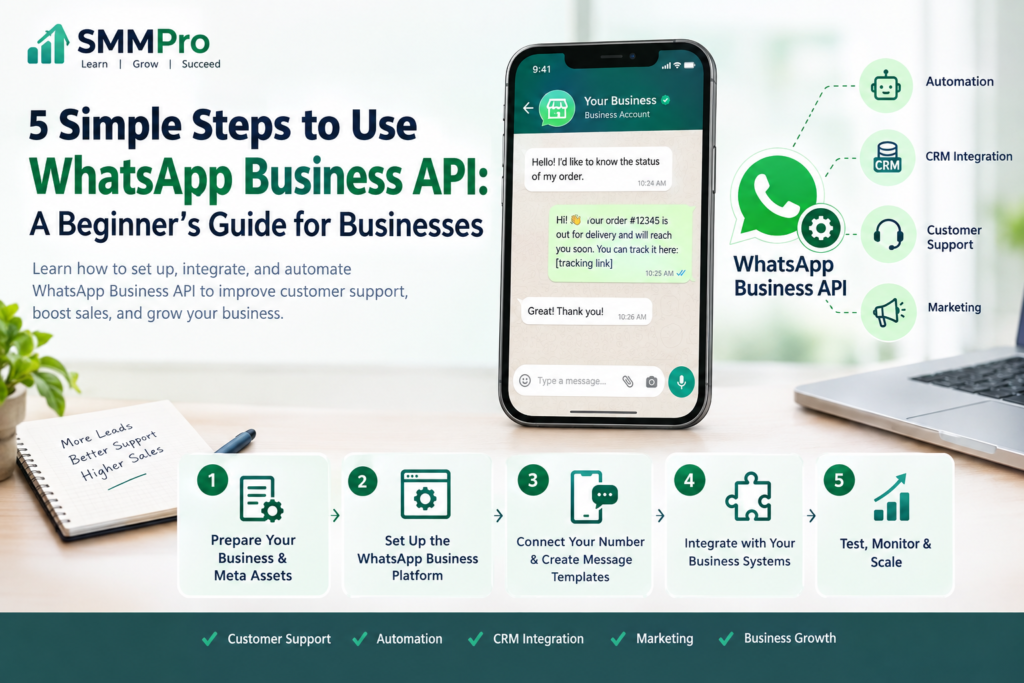

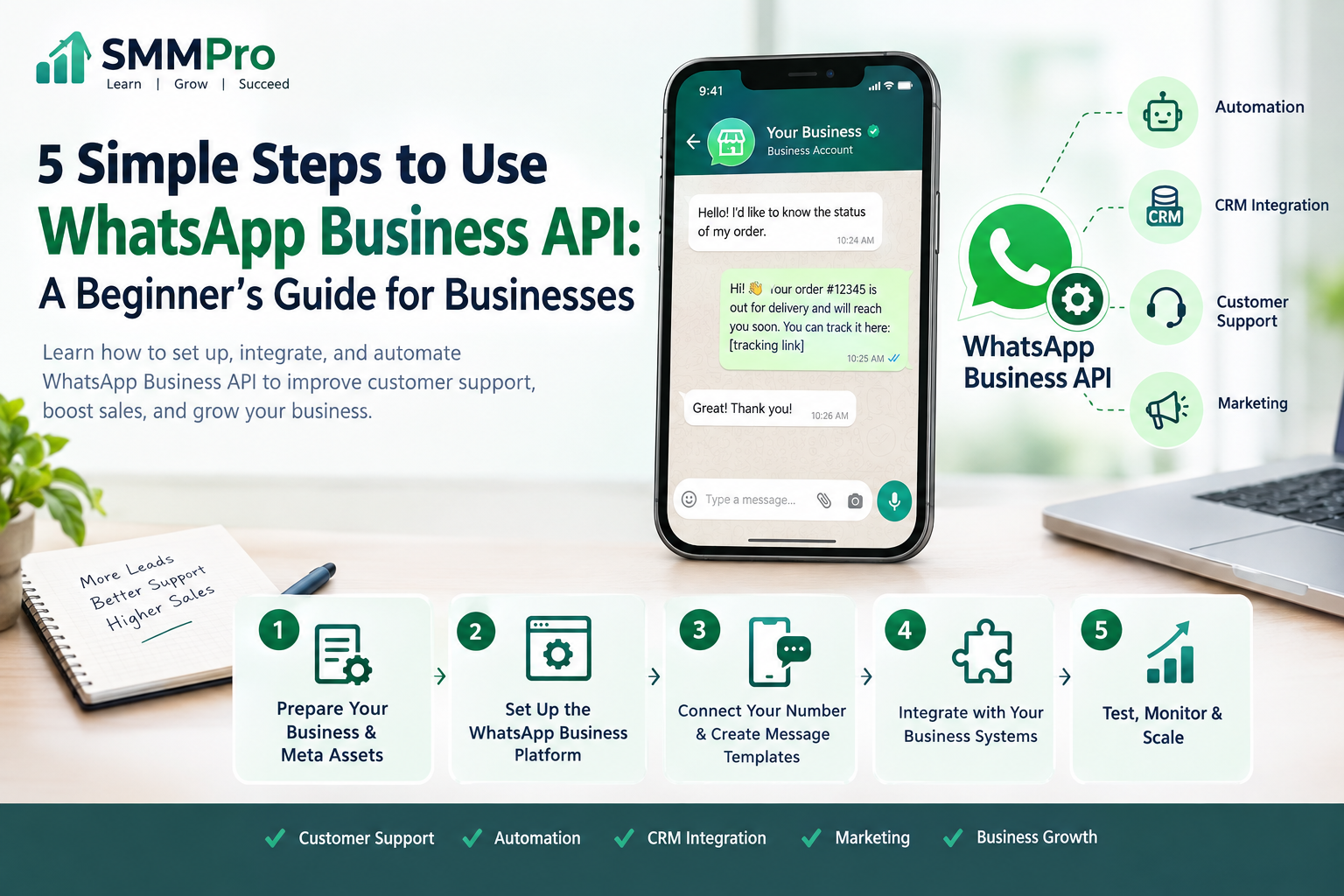
Imagine a customer places an order on your website. Instead of manually checking WhatsApp, copying the order number, writing a confirmation message, and repeating the process for hundreds of customers, your system automatically sends the right message.
That is where the WhatsApp Business API becomes useful.
The WhatsApp Business API—now commonly used through the WhatsApp Business Platform, including Meta’s Cloud API—allows businesses to connect WhatsApp with websites, CRMs, customer-support systems, e-commerce platforms, chatbots, and other software. It is designed for businesses that need more automation and scale than the standard WhatsApp Business app can provide. Meta’s current platform includes the Cloud API hosted by Meta.
But getting started can seem confusing. Terms such as API, Business Portfolio, message templates, webhooks, verification, and integrations can make the process look more technical than it really is.
This guide breaks how to use WhatsApp Business API into five practical steps.
What Is WhatsApp Business API?
The WhatsApp Business API is a way for software systems to communicate with customers through WhatsApp.
Unlike the regular WhatsApp Business app, the API is not primarily an app that you open and use like a normal chat application. Instead, it acts as a connection between WhatsApp and your business software.
For example:
Customer → WhatsApp → WhatsApp Business Platform → Your CRM/website/chatbot → Business team
A customer might ask:
“Where is my order?”
Your system can receive the message, identify the customer, check the order status, and automatically respond.
If the question is complicated, the conversation can then be transferred to a human agent.
This makes the API particularly useful for customer support, order updates, lead management, notifications, marketing, and WhatsApp automation.
WhatsApp Business App vs. WhatsApp Business API
One of the most common beginner questions is: “Do I need the WhatsApp Business API if I already have WhatsApp Business?”
Not necessarily.
The WhatsApp Business app is generally suitable for small businesses that manage conversations manually.
The WhatsApp Business Platform/API is more suitable when a business needs software integrations, automation, multiple workflows, customer-support systems, or communication at a larger scale
| WhatsApp Business App | WhatsApp Business API |
|---|---|
| Mainly managed through an app | Connected to business software |
| Manual conversations | Automated and programmatic messaging |
| Suitable for smaller operations | Suitable for growing and larger operations |
| Basic business features | CRM, chatbot, and API integrations |
| Limited automation | Advanced automation possibilities |
| One business workflow | Can support complex customer journeys |
For example, a small online clothing store with 20 customer chats per day might be perfectly comfortable with the WhatsApp Business app.
A store receiving 500 customer questions, order updates, and support requests every day may benefit much more from the API.
5 Simple Steps to Use WhatsApp Business API
Step 1: Prepare Your Business and Meta Assets
Before starting your WhatsApp Business API setup, prepare the basic business information and Meta assets you will need.
The exact onboarding flow can vary depending on whether you connect directly through Meta or use a solution provider, but businesses generally need a Meta business presence, a WhatsApp Business Account, and a phone number to connect to the platform.
You should have:
- A legitimate business
- A Meta Business Portfolio
- Business information
- A WhatsApp Business Account
- A phone number for WhatsApp
- A business display name
- A website or other customer-support information where applicable
- A clear reason for using WhatsApp
Meta’s WhatsApp Business policy also requires businesses to maintain a WhatsApp Business profile containing customer-support contact information such as an email address, website, and/or phone number.
Do you need business verification?
Business verification may be required depending on the setup, account, features, and onboarding route you use.
It is important not to confuse business verification with simply having a Facebook or Instagram account.
Business verification is part of Meta’s business ecosystem and can involve submitting information about your organization.
Because Meta changes onboarding requirements and availability by account and region, check the current requirements shown in your Meta Business account before starting.
What about the phone number?
Choose your WhatsApp number carefully.
You should have control of the number and be prepared to complete the verification process.
Also decide whether this will be:
- Your existing business number
- A dedicated WhatsApp number
- A number used specifically for customer support
For a growing business, using a dedicated customer-service number can make your WhatsApp operation easier to manage.
Step 2: Set Up WhatsApp Business Platform
Once your business assets are ready, the next step is to connect your business to the WhatsApp Business Platform.
There are two common approaches.
Option 1: Use Meta’s Cloud API
Meta provides a Cloud API hosted by Meta.
This can be a good choice for businesses with developers or technical teams because the business can build its own integration.
For example, a developer can connect WhatsApp with:
- A website
- CRM software
- E-commerce system
- Customer-support dashboard
- Lead-management system
- Chatbot
- Internal business software
Option 2: Use a WhatsApp Solution Provider
A business without technical resources may choose a platform or solution provider that handles much of the technical setup.
This can make the process easier because the provider may offer:
- Visual dashboards
- Team inboxes
- Chatbots
- CRM integrations
- Automation builders
- Analytics
- Template management
However, providers can charge their own platform or service fees in addition to Meta’s messaging charges.
So before choosing one, compare the total cost, features, support, and contract terms.
Step 3: Connect Your Phone Number and Create Message Templates
After setting up the WhatsApp Business Platform, you need to configure how your business communicates with customers.
This is where WhatsApp message templates become extremely important.
A message template is a pre-approved message format that businesses can use for certain business-initiated communications.
For example:
Order confirmation
Hi {{1}}, your order #{{2}} has been confirmed. We’ll notify you when it ships.
Another example could be:
Appointment reminder
Hi {{1}}, this is a reminder that your appointment is scheduled for {{2}} at {{3}}.
Templates can be useful for:
- Order confirmations
- Shipping updates
- Appointment reminders
- Account notifications
- Authentication/OTP messages
- Marketing messages
WhatsApp’s current policy states that businesses can initiate conversations on the Business Platform using approved message templates. Templates must comply with WhatsApp’s requirements and may be reviewed, approved, paused, or rejected.
Why templates matter
A common beginner mistake is thinking:
“I have a customer’s phone number, so I can automatically send them any message whenever I want.”
That’s not how the platform works.
WhatsApp is designed around user consent and controlled business messaging.
Businesses should obtain appropriate opt-ins and set clear expectations about the types of messages customers will receive. WhatsApp specifically recommends obtaining consent for different message categories and providing clear ways for users to opt out.
Step 4: Integrate WhatsApp With Your Business
This is where the WhatsApp API integration becomes powerful.
Instead of treating WhatsApp as a separate communication channel, connect it to the systems your business already uses.
For example:
Website → CRM → WhatsApp API → Customer
Or:
Online order → E-commerce platform → WhatsApp API → Order confirmation
Or:
Customer question → WhatsApp → Chatbot → Human agent
WhatsApp API for customer support
A customer could send:
“I haven’t received my order.”
Your system could automatically ask for the order number.
The integration can then look up the order and return:
“Your order is currently out for delivery.”
If the system cannot answer the question, it can send the conversation to a customer-support agent.
This creates a combination of WhatsApp API automation + human support.
Meta’s policy allows automation during the 24-hour customer-service window, but businesses must provide a clear and timely escalation path to human support or another support channel.
WhatsApp API chatbot
A chatbot can handle repetitive questions such as:
- What are your opening hours?
- Where is my order?
- What is your return policy?
- What products do you sell?
- How can I book an appointment?
- What payment methods do you accept?
The important point is that automation should solve simple problems—not create a frustrating loop where customers cannot reach a human.
WhatsApp API for marketing
Businesses can also use WhatsApp for marketing campaigns, product announcements, promotions, and other permitted business communications.
However, marketing messages must follow WhatsApp’s policies and consent requirements.
Don’t treat WhatsApp like an unrestricted bulk-email list.
Poor-quality or unwanted messaging can lead to users blocking or reporting a business, and WhatsApp can restrict businesses that repeatedly violate its policies or create poor experiences.
Step 5: Test, Monitor, and Scale Your WhatsApp Automation
Your WhatsApp Business API setup should not end when the first message is successfully sent.
Before launching at scale, test your complete customer journey.
For example:
- Customer sends a WhatsApp message.
- Your system receives the message.
- The automation identifies the request.
- The customer receives an appropriate response.
- Complex questions are transferred to an agent.
- The CRM records the interaction.
- Follow-up messages work correctly.
- Opt-outs are respected.
Monitor important metrics
Track metrics such as:
- Messages delivered
- Customer responses
- Response time
- Leads generated
- Support resolution rate
- Conversion rate
- Block/report rates
- Template performance
- Cost per message
- Sales generated from WhatsApp
These numbers help you identify what is working and where customers are getting stuck.
WhatsApp Business API Pricing: What Beginners Should Know
WhatsApp API pricing has changed significantly in recent years, so old articles can be misleading.
Meta currently charges businesses on a per-message basis for messages it delivers, rather than using the older conversation-based model. The amount depends on the recipient’s market and message category. The current categories are marketing, utility, authentication, and service.
The important distinction is:
Marketing messages
Used for permitted promotional or marketing communications.
Utility messages
Used for things such as order updates, confirmations, and other transactional communications.
Authentication messages
Used for verification and one-time passwords.
Service messages
Used to respond to customer inquiries.
Meta says service messages are not charged, and utility messages sent in response to users are also not charged under the applicable customer-service conditions. When a user messages a business, a 24-hour customer-service window opens, allowing the business to respond with service messages without a Meta charge.
Meta also provides free entry points: when a customer contacts a business from an ad that clicks to WhatsApp or a Facebook Page call-to-action button, messages sent during the following 72 hours can be free under the platform’s applicable rules.
Important: Actual rates vary by country, message category, and applicable volume tiers. Pakistan is included among the markets for which Meta publishes specific rates, so businesses should check the current official rate card rather than relying on an old blog’s price.
Also remember that a solution provider may charge its own fees separately from Meta’s messaging charges.
WhatsApp Business API Benefits for Businesses
Why are businesses investing in WhatsApp API integration?
1. Better customer support
Customers can contact businesses through a channel they already use.
2. Faster responses
Automation can answer repetitive questions immediately.
3. Less manual work
Teams don’t have to manually send every order update or reminder.
4. CRM integration
Customer conversations can become part of a broader sales and support workflow.
5. Scalable communication
Businesses can build workflows that support much larger volumes than manual messaging.
6. Personalized customer journeys
Businesses can use customer information to create relevant and timely communications.
7. Automation
Chatbots and automated workflows can operate continuously while human agents focus on complex requests.
Who Should Use WhatsApp Business API?
The API isn’t automatically the best choice for every business.
It is particularly useful for:
- E-commerce stores
- Online retailers
- Customer-support teams
- Agencies
- SaaS companies
- Appointment-based businesses
- Education businesses
- Service providers
- Growing startups
- Businesses with large numbers of customer conversations
For example, a small Instagram jewelry seller receiving 10 WhatsApp inquiries a day may not need a full API integration.
But if that business grows to hundreds of inquiries, order updates, abandoned-cart follow-ups, and support conversations, automation can become much more valuable.
Common WhatsApp Business API Mistakes to Avoid
Sending messages without proper consent
Don’t upload a list of random phone numbers and start messaging people.
WhatsApp recommends clear opt-in practices and respecting users’ choices about the types of messages they receive.
Treating the API like normal WhatsApp
The API has specific rules for templates, messaging, automation, and customer-service conversations.
Ignoring the 24-hour window
When a customer messages your business, you have a 24-hour customer-service window for free-form responses. Outside that window, business-initiated communication generally requires an approved template.
Automating everything
A chatbot should not trap customers in endless automated replies.
Provide a clear path to a human agent when needed.
Choosing a provider without checking costs
Compare Meta’s messaging charges with the provider’s platform, setup, subscription, and usage fees.
Ignoring WhatsApp policies
WhatsApp can restrict or remove access when businesses repeatedly violate policies, send unauthorized bulk messages, or create poor-quality experiences.
Final Thoughts
The WhatsApp Business API can turn WhatsApp from a simple messaging channel into a powerful business communication system.
The basic process is easier to understand when you break it down:
1. Prepare your business and Meta assets.
2. Set up the WhatsApp Business Platform.
3. Connect your phone number and create approved templates.
4. Integrate WhatsApp with your CRM, website, chatbot, or business software.
5. Test your workflows, monitor results, and scale.
The biggest lesson for beginners is that successful WhatsApp API marketing is not about sending the largest number of messages possible. It is about sending the right message to the right customer at the right time, with proper consent and a useful customer experience.
When implemented correctly, WhatsApp can support the entire customer journey—from the first question to lead generation, purchase updates, customer support, and long-term retention.
For businesses already receiving a significant number of WhatsApp conversations, WhatsApp Business API automation can be the next step toward building a faster, more organized, and scalable customer communication system.