
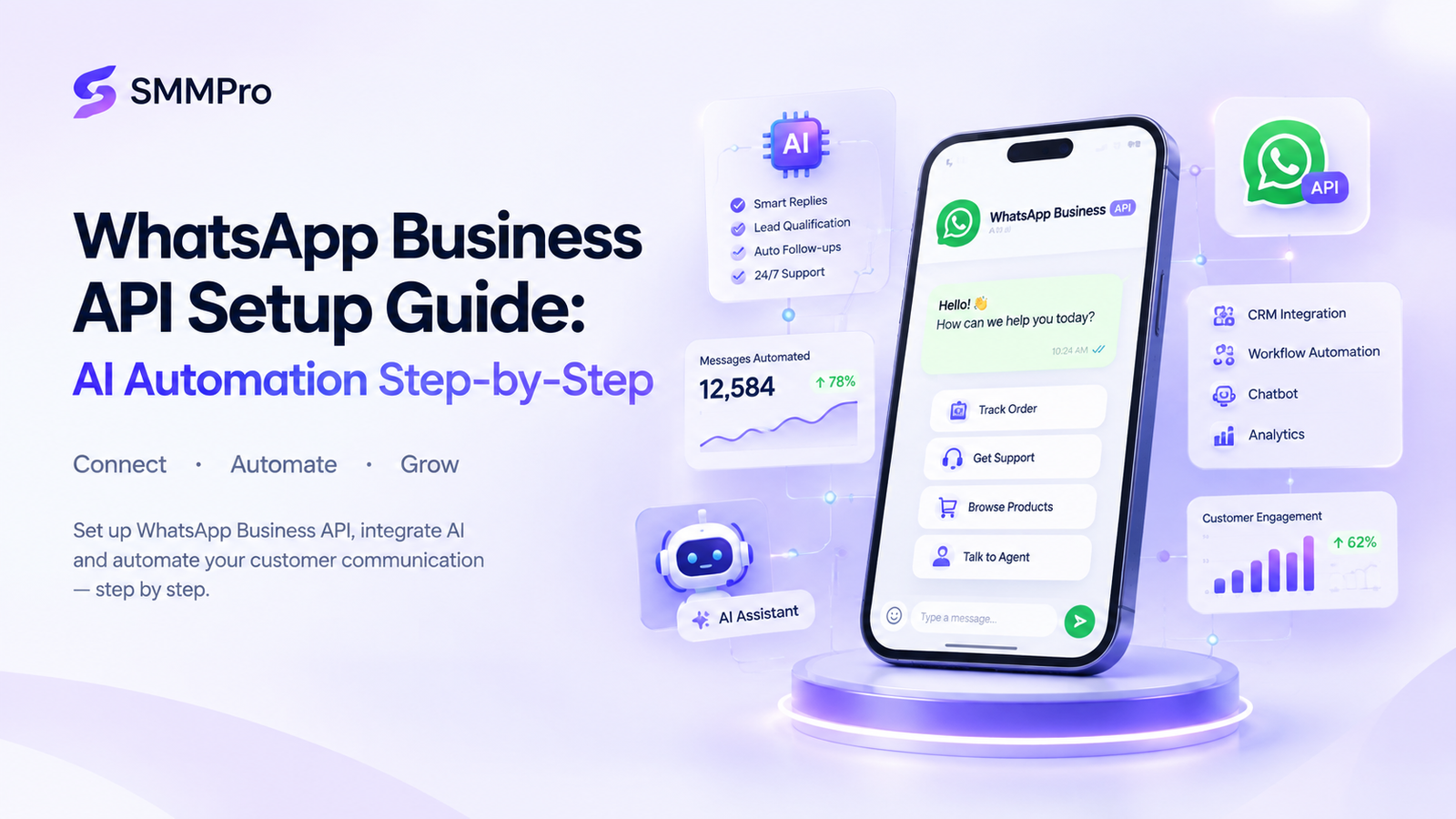
Managing customer inquiries manually on standard messaging apps quickly creates bottlenecks as your business grows. Missed messages mean lost sales. That is where a proper whatsapp business api setup guide becomes essential.
By upgrading to the official WhatsApp Cloud API and connecting intelligent bots, you turn a simple chat app into an automated sales and support engine. Unlike the standard business app, the API lets you automate complex workflows, broadcast targeted campaigns, and instantly route conversations to your sales team.
In this comprehensive tutorial, you will learn how to complete your API setup, configure AI-driven workflows, structure your messaging budgets, and capture high-intent leads automatically.
Quick Summary: Key Takeaways
App vs. API: The standard WhatsApp Business App limits you to one primary phone with basic auto-replies. The Cloud API unlocks multi-agent routing, database integration, and conversational AI.
Setup Speed: With Meta Cloud API, you can set up a verified business phone number in under 30 minutes using Meta Business Manager.
Lead Qualification: Combining WhatsApp API with AI models allows you to qualify leads 24/7 without human intervention.
Compliance Rules: Template messages require pre-approval from Meta, and broadcasts must strictly adhere to user opt-in requirements.
WhatsApp Business App vs. WhatsApp Business API
| Feature | WhatsApp Business App | WhatsApp Cloud API |
|---|---|---|
| Target Audience | Micro-businesses & Solo Freelancers | Growing SMBs, Enterprise & Agencies |
| User Access | Up to 4–5 connected devices | Unlimited agents via custom inbox/CRM |
| Broadcast Limits | 256 contacts per manual list | Up to unlimited messages/day (tiered) |
| AI Integration | Basic quick replies only | Full LLM, custom AI agents, Zapier, Make |
| CRM Integration | None (Manual exports) | Native sync with HubSpot, Salesforce, custom DBs |
| Ad Triggering | Basic link clicks | Advanced direct event tracking & pixel data |
Understanding WhatsApp Business API Pricing
A crucial part of any setup strategy is understanding whatsapp business api pricing. Meta uses a conversation-based pricing model rather than charging per individual text message.
A “conversation” includes all messages exchanged within a fixed 24-hour window starting when your business sends a message or responds to a user.
Meta’s Four Conversation Categories
Marketing Conversations: Messages containing promotional offers, product updates, or announcements. These carry the highest base rate.
Utility Conversations: Direct updates related to specific customer transactions, such as order confirmations, shipping updates, or billing statements.
Authentication Conversations: One-time passcodes (OTPs) used during login or account verification processes.
Service Conversations: User-initiated conversations where customer support responds to inbound inquiries. (Service conversations triggered within 24 hours of a user click on a Click-to-WhatsApp ad are completely free).
Pro Tip: Choosing Meta’s direct Cloud API hosting eliminates third-party platform markup fees. You only pay Meta’s direct conversation charges plus any fee charged by your chosen marketing inbox platform.
Step-by-Step WhatsApp Business API Setup Guide
Follow this proven process to set up your business account directly through Meta Developer Console.
+-----------------------------------------------------------------+
|                    WHATSAPP API SETUP WORKFLOW                  |
+-----------------------------------------------------------------+
| 1. Meta Business Manager   -->   Verify Business Information    |
| 2. Developer Portal Setup  -->   Create App & Link Phone Number |
| 3. API Authentication      -->   Generate Permanent System Token|
| 4. Middleware / AI Hub     -->   Connect Webhooks (Zapier/Make) |
| 5. CRM & AI Deployment     -->   Launch Automated AI Workflows  |
+--------------------------------------------------------------
Step 1: Meta Business Manager Verification
To start this whatsapp business api setup guide, you need an active Meta Business Manager (now Meta Business Suite) account.
Navigate to
business.facebook.comand log into your primary business profile.Go to Business Settings > Security Center.
Complete the Business Verification process by submitting official documentation (tax ID, registration certificate, or utility bill showing your exact business name and address).
Wait for Meta’s verification approval (typically 24 to 48 hours).
Step 2: Register a Dedicated Phone Number
Your WhatsApp API phone number cannot be active on any existing personal or WhatsApp Business smartphone application.
Purchase a clean virtual or direct VoIP line, landline, or mobile number.
If the number is currently registered on a phone app, open the app, go to Settings > Account, and select Delete My Account.
Step 3: Create Your WhatsApp Developer App
Go to
developers.facebook.comand sign in using your Meta administrator credentials.Click Create App in the upper right corner.
Select Other as your app use case, then choose Business.
Name your application and link it to your verified Meta Business Manager account.
In the product selection dashboard, scroll down to WhatsApp and click Set Up.
Step 4: Configure System Access Tokens & Webhooks
By default, Meta provides a temporary 24-hour access token. To keep your automated workflows running continuously, generate a permanent System User token:
Inside Meta Business Settings, click System Users under the Users menu.
Add a new System User with the role of Admin.
Click Generate New Token, select your WhatsApp Developer App, and enable
whatsapp_business_managementandwhatsapp_business_messagingpermissions.Store this token securely. You will use it to link your WhatsApp API to your AI tools and CRM systems.
Setting Up WhatsApp Automation for Business with AI
Once your API account is verified, simple auto-responders will not cut it for scaling your business. Implementing modern whatsapp automation for business involves attaching Large Language Models (LLMs) or no-code conversational workflows to process customer inquiries intelligently.
[User Message] ---> [WhatsApp Cloud API] ---> [Webhook Engine]
                                                    |
                                                    v
[CRM Database] <--- [Lead Scoring Rules] <--- [AI Parsing Engine]
Step-by-Step AI Setup Workflow:
Choose a Middleware Interface: Connect your Meta API token to a visual conversation builder like ManyChat, Chatfuel, Make, or Zapier.
Build Your Intent Prompts: Define clear boundaries for your AI agent. Tell the model what products you sell, your pricing models, and business hours.
Configure Automated Lead Qualification on WhatsApp: Program your AI agent to capture essential customer details (Name, Email, Budget, Timeline) early in the conversation before assigning the chat to a human account executive.
Connecting Your CRM: WhatsApp Marketing CRM Integration
A primary reason businesses implement an API strategy is data centralized management. Executing a clean whatsapp marketing crm integration keeps your database up to date without manual data entry.
How to Integrate WhatsApp API with HubSpot or Salesforce:
Contact Creation: Automatically create a new contact card whenever an unknown contact initiates a message.
Message Logging: Save full transcriptions of AI and human chat conversations directly into customer contact timelines.
Pipeline Triggers: Automatically update deal stages based on key conversation triggers (e.g., if a contact confirms they have a budget over $5,000, trigger a deal update to Qualified Prospect).
Scaling Conversions with Click-to-WhatsApp Ads
Once your API account is verified, simple auto-responders will not cut it for scaling your business. Implementing modern whatsapp automation for business involves attaching Large Language Models (LLMs) or no-code conversational workflows to process customer inquiries intelligently.
[User Message] ---> [WhatsApp Cloud API] ---> [Webhook Engine]
                                                    |
                                                    v
[CRM Database] <--- [Lead Scoring Rules] <--- [AI Parsing Engine]
Step-by-Step AI Setup Workflow:
Choose a Middleware Interface: Connect your Meta API token to a visual conversation builder like ManyChat, Chatfuel, Make, or Zapier.
Build Your Intent Prompts: Define clear boundaries for your AI agent. Tell the model what products you sell, your pricing models, and business hours.
Configure Automated Lead Qualification on WhatsApp: Program your AI agent to capture essential customer details (Name, Email, Budget, Timeline) early in the conversation before assigning the chat to a human account executive.
Connecting Your CRM: WhatsApp Marketing CRM Integration
A primary reason businesses implement an API strategy is data centralized management. Executing a clean whatsapp marketing crm integration keeps your database up to date without manual data entry.
How to Integrate WhatsApp API with HubSpot or Salesforce:
Contact Creation: Automatically create a new contact card whenever an unknown contact initiates a message.
Message Logging: Save full transcriptions of AI and human chat conversations directly into customer contact timelines.
Pipeline Triggers: Automatically update deal stages based on key conversation triggers (e.g., if a contact confirms they have a budget over $5,000, trigger a deal update to Qualified Prospect).
Scaling Conversions with Click-to-WhatsApp Ads
Organic traffic is valuable, but combining high-performing social ads with instant messaging delivers unmatched conversion speed. Executing a click to whatsapp ads setup through Meta Ads Manager routes high-intent traffic directly into your AI chat funnel.
[Facebook / Instagram Ad]
           |
           v (User Clicks "Send Message")
[Instant WhatsApp Thread Opens]
           |
           v
[AI Agent Qualifies Prospect & Books Call]
Best Practices for Ads Setup:
Select Engagement or Leads as your Meta campaign objective.
Choose Messaging Apps as your conversion location and select your verified WhatsApp business profile.
Write ad copy highlighting immediate value: “Click below to get an instant quote on WhatsApp within 30 seconds.”
Connect your AI agent to process incoming message payloads immediately upon user click.
WhatsApp Broadcast Messaging Rules & Compliance
Sending outbound messages at scale requires strict adherence to Meta’s ecosystem guidelines. Misusing your access can lower your phone number quality rating and lead to temporary or permanent bans.
Follow these primary whatsapp broadcast messaging rules:
Strict Opt-In Consent: You must collect explicit consent via a web form, checkbox, or inbound message before sending promotional broadcasts.
Template Pre-Approval: Every outbound, business-initiated message must be submitted to Meta as a structured Message Template. Categorize these correctly as Marketing, Utility, or Authentication.
Avoid Spam Signals: Include clear opt-out commands in every marketing message (e.g., “Reply STOP to unsubscribe”).
Monitor Quality Ratings: Maintain high phone quality ratings by monitoring your account health in Meta’s WhatsApp Manager dashboard.
Real-World Case Study: Automated Lead Qualification
The Business: A B2B digital marketing agency receiving over 200 incoming inquiries monthly across Facebook and Instagram.
The Problem: The sales team took an average of 4 hours to respond to leads. Conversion rates dropped because potential clients bought from faster competitors.
The Solution: The agency set up the WhatsApp Cloud API connected to an AI workflow built on Make.
[Inbound Ad Click]
       |
       v
[AI Agent Asks 3 Qualification Questions]
       |
       +---> [Low Budget]  --> Sends Self-Serve Resource Link
       |
       +---> [High Budget] --> Sends Calendly Booking Link + Creates CRM Deal
The Results:
Response Time: Reduced from 4 hours to under 10 seconds.
Lead Qualification Rate: Increased by 42%.
Sales Team Productivity: Saved 15+ hours weekly by filtering out unqualified inquiries automatically.
Common Setup Pitfalls & Solutions
| Mistake | Operational Risk | Corrective Action |
|---|---|---|
| Using an active app number | Setup failure / lost chat logs | Delete account from the mobile app first before API registration. |
| Unapproved Template Category | High template rejection rates | Align content strictly with Meta guidelines (e.g., no sales language in utility templates). |
| Ignoring Quality Ratings | Reduced messaging limit tiers | Segment target lists, respect opt-outs, and personalize messaging. |
| Hardcoding Access Tokens | System disconnects after 24 hours | Always generate long-lived tokens via Meta System Users. |
FAQ
FAQs about How to Set Up WhatsApp Business API with AI Automation (Step-by-Step Guide)
The primary difference is that the WhatsApp Business App is a mobile application for single users, whereas the WhatsApp Business API is an enterprise cloud interface built for multi-agent support and automated workflows. While the mobile app limits broadcast lists to 256 contacts and offers basic quick replies, the Cloud API integrates with CRMs, AI chatbots, and custom databases to handle scalable messaging without hardware restrictions.
You can migrate an existing phone number by deleting your account inside the mobile WhatsApp Business app settings before registering it within Meta Business Manager. Because a single phone number cannot be active on the mobile app and the Cloud API simultaneously, deleting the mobile account releases the line. Once released, enter the number into your Meta Developer console, complete SMS or voice verification, and link it to your WhatsApp Business Account.
To generate a permanent access token, you must create a System User with an Admin role inside Meta Business Settings rather than relying on the default 24-hour developer token. Under System Users, assign your WhatsApp Developer App to the account and generate a new token with whatsapp_business_management and whatsapp_business_messaging permissions. Storing this permanent token securely ensures your webhooks, CRMs, and AI automation workflows run continuously without authentication errors.
Businesses qualify leads on WhatsApp by connecting the Cloud API to an AI middleware platform such as Make, Zapier, or ManyChat. When a prospective client initiates a chat, an AI agent asks targeted qualification questions regarding budget, timeline, and project scope. The system parses these responses in real time, assigns a lead score, updates your CRM, and routes high-intent prospects directly to your sales team or booking calendar.
Meta requires businesses to obtain explicit opt-in consent from users before sending outbound promotional broadcast messages. Consent must be collected through clear affirmative actions, such as a website sign-up checkbox, a digital contact form, or an inbound customer chat thread. Additionally, every promotional broadcast must utilize an approved Message Template and include a straightforward opt-out command (such as “Reply STOP to unsubscribe”) to protect your account’s quality rating.
No, the WhatsApp Business API is not a downloadable mobile application. It is a cloud-based software interface that connects directly to business software, CRM platforms, or custom customer service dashboards. Rather than responding from a mobile device, team members manage API conversations through centralized messaging platforms like HubSpot, Interakt, or custom agency inbox software.
WhatsApp Business API charges businesses on a per-message basis categorized by intent: Marketing, Utility, Authentication, and Service. To minimize messaging spend, businesses can leverage Meta’s 72-hour Free Entry Point window by running Click-to-WhatsApp ads, which waives message delivery charges for subsequent chats. Furthermore, connecting directly via Meta’s Cloud API eliminates third-party platform markup fees charged by traditional intermediaries.
WhatsApp API integrates with CRM platforms by connecting system webhooks through direct REST API endpoints or integration platforms like Make and Zapier. When a customer messages your business line, the integration automatically creates or updates a contact record, logs chat transcripts onto the lead timeline, and updates pipeline deal stages. This keeps database records updated while allowing team members to communicate from within the CRM interface.
Meta rejects WhatsApp message templates primarily due to incorrect category classification, spelling mistakes, invalid variable syntax, or overt promotional language inside utility categories. You can fix rejected templates by reviewing the rejection code in Meta WhatsApp Manager, ensuring variables use double curly brackets (e.g., {{1}}), aligning the text strictly with Meta’s messaging policies, and resubmitting the template for approval.