
Getting a lead from a Facebook ad is only the first step. The real challenge starts after someone submits the form.
If a new lead stays inside Meta, sits in a spreadsheet, or waits for someone to manually check it, your sales process can quickly become messy. A Facebook Lead Ads CRM integration solves this by moving new leads into your customer relationship management system and triggering the next actions automatically.
The basic process is:
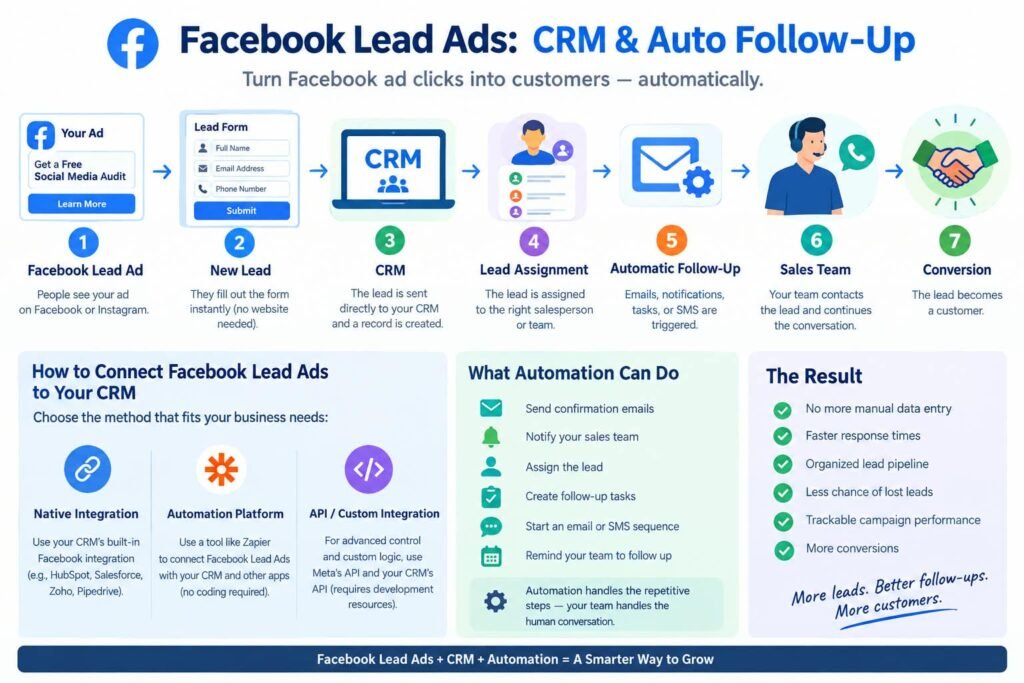
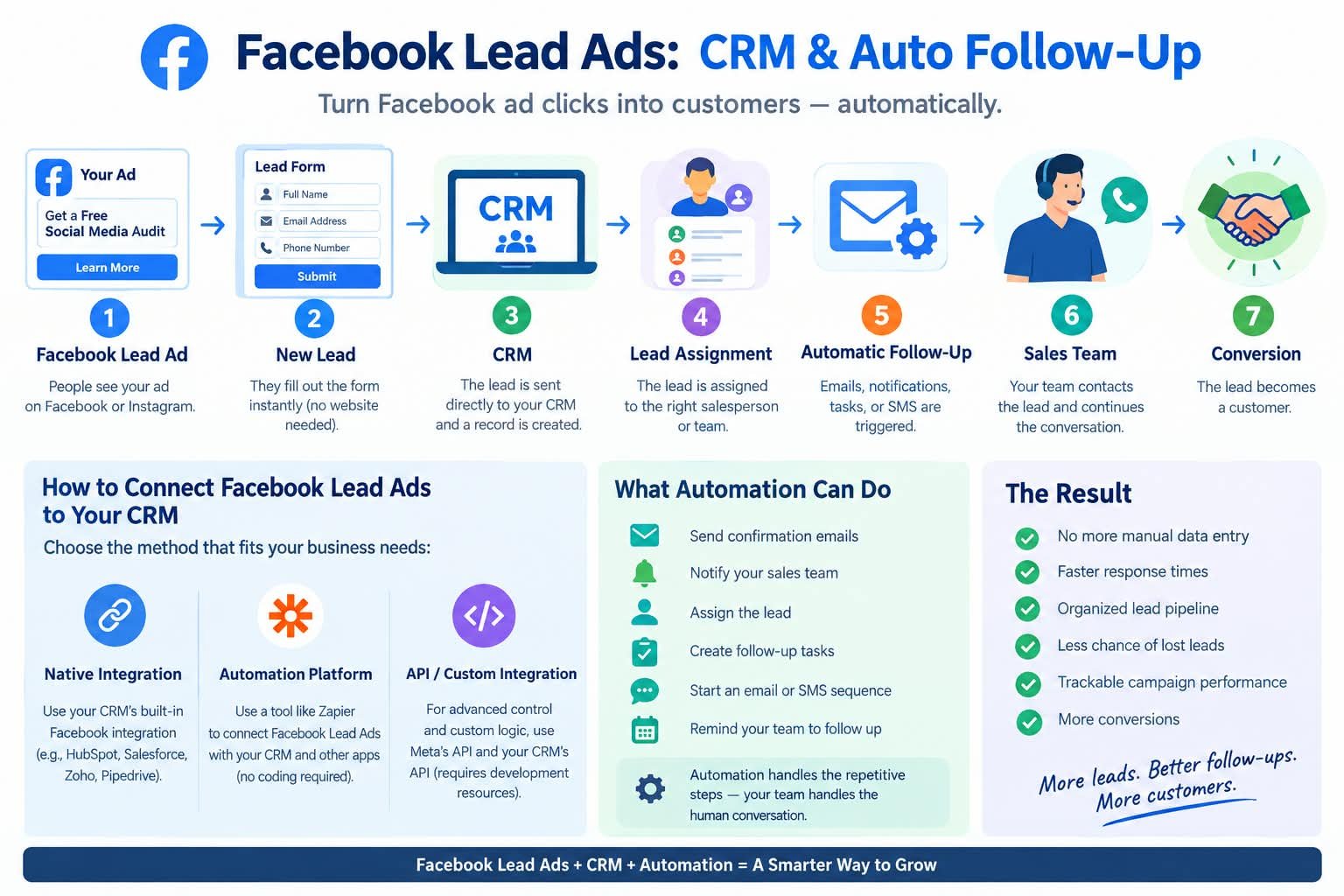
Facebook Lead Ad → New Lead → CRM → Lead Assignment → Automatic Follow-Up → Sales Team → Conversion
So, how can you send Facebook Lead Ad leads directly to your CRM and automatically follow up with them?
You can connect your Facebook Lead Ads to a CRM through a native integration, an automation platform such as Zapier, or a custom API-based setup. Once connected, a new lead can create a CRM record, assign the lead to a salesperson, send a notification, start an email sequence, or trigger another follow-up action. Exact options depend on the CRM and automation tools you use.
This guide explains how the whole process works and how to build a reliable workflow—even if you are new to lead automation.
What Are Facebook Lead Ads?
Facebook Lead Ads are advertising campaigns designed to collect information from potential customers through a form on Meta.
Instead of sending someone to a separate website page, the person can submit information such as:
- Name
- Email address
- Phone number
- Location
- Answers to custom questions
This makes lead generation convenient because the customer can respond without completing a traditional website form.
For example, imagine a digital marketing agency running an ad that says:
Want a Free Social Media Audit?
The user clicks the ad, opens the lead form, enters their information, and submits it.
That person is now a lead.
The next question is: Where does that lead go?
Without an integration, a business may need to check Meta’s lead management tools or manually export information. With a proper Facebook Lead Ads integration, the information can flow into a CRM automatically.
What Is a CRM?
CRM stands for Customer Relationship Management.
A CRM is software that helps businesses organize and manage interactions with potential and existing customers.
Instead of keeping customer information scattered across spreadsheets, emails, Facebook, and notebooks, a CRM can keep it in one system.
A typical CRM record might contain:
| Information | Example |
|---|---|
| Name | Sarah Khan |
| sarah@example.com | |
| Phone | +92 300 1234567 |
| Source | Facebook Lead Ad |
| Campaign | Free Social Media Audit |
| Status | New Lead |
| Assigned To | Sales Team |
| Notes | Interested in Instagram marketing |
Popular CRM systems can also support workflows, notifications, sales pipelines, email campaigns, and reporting. The exact features vary by platform and subscription.
Why Connect Facebook Lead Ads to a CRM?
A Facebook lead form can generate interest, but a CRM helps turn that interest into an organized sales process.
1. Stop manually entering leads
Manually copying Facebook leads into a CRM or spreadsheet takes time and creates opportunities for errors.
An automated integration can create or update a CRM record when a new lead arrives. For example, Zapier currently supports workflows that trigger from a new Facebook Lead Ads lead and then create records in systems such as Salesforce, Zoho CRM, HubSpot, and other platforms.
2. Respond faster
A new lead can trigger an internal notification immediately.
For example:
New Facebook lead → CRM record → Salesperson notification → Phone call
The salesperson does not have to wait for someone to download a spreadsheet.
3. Keep leads organized
A CRM can help separate leads into stages such as:
New → Contacted → Qualified → Proposal → Won/Lost
This gives your team a clearer picture of what is happening with every potential customer.
4. Automate repetitive follow-up
Depending on the CRM and automation setup, a new lead can trigger:
- Email confirmation
- Internal notification
- Sales task
- Lead assignment
- SMS or messaging workflow
- Follow-up sequence
- Reminder for a salesperson
For example, HubSpot can sync Facebook lead forms and use those submissions as triggers for lists and workflows.
5. Reduce lost leads
One of the biggest advantages of Facebook lead management is visibility.
If a lead automatically enters your CRM and receives an owner, it becomes much harder for that inquiry to disappear unnoticed.
How Facebook Lead Ads and CRM Automation Work Together
Think of the process as a chain:
1. Ad
A person sees your Facebook or Instagram Lead Ad.
↓
2. Instant Form
They submit their information.
↓
3. Lead Transfer
The lead is passed to the connected CRM or automation platform.
↓
4. CRM Record
A contact or lead record is created or updated.
↓
5. Assignment
The CRM assigns the lead to the appropriate salesperson or team.
↓
6. Automation
A notification, email, task, or other workflow starts.
↓
7. Human Follow-Up
The salesperson contacts the lead and continues the conversation.
↓
8. Conversion
The lead becomes a customer.
This distinction is important: automation should handle repetitive steps, while your sales team should handle the human conversation.
How to Connect Facebook Lead Ads to a CRM
The exact interface varies between CRM platforms, but the overall process is similar.
Step 1: Choose Your CRM
First, decide where your Facebook leads should go.
Consider:
- Does the CRM support Facebook Lead Ads?
- Does it support automatic workflows?
- Can it assign leads to team members?
- Can it send email notifications?
- Can it connect to your other marketing tools?
- Does it provide the reporting your team needs?
- Does the pricing fit your business?
There is no single best CRM for Facebook leads for every business.
A small business may need only basic lead management and notifications, while a larger sales team may need advanced pipelines, automation, reporting, and multiple integrations.
Step 2: Prepare Your Facebook Page and Lead Form
Before connecting anything, make sure you have:
- The correct Facebook Page
- An active lead generation campaign or form
- Access to the relevant ad account
- Appropriate Page and lead permissions
- A clear lead form
- The CRM or integration tool you want to connect
Meta permissions are especially important.
For example, HubSpot currently requires appropriate Facebook Page access, ad account access, and Leads Access for Facebook lead syncing.
Step 3: Connect Facebook Lead Ads to Your CRM
There are several ways to do this.
Option 1: Native CRM Integration
Some CRM platforms provide their own Facebook Lead Ads connection.
The general process looks like this:
- Open your CRM.
- Find its advertising or lead integration settings.
- Choose Facebook/Meta.
- Sign in to the relevant Meta account.
- Select the Facebook Page and ad account.
- Grant the requested permissions.
- Enable lead syncing.
- Select the relevant lead forms.
- Map Facebook fields to CRM fields.
For example, HubSpot allows businesses to connect their Facebook Ads account and configure lead syncing for specific Facebook Pages. It also supports field mapping for Facebook lead forms.
The exact menu names will vary by CRM.
Option 2: Use an Automation Platform
If your CRM does not have the integration you need, an automation platform can act as the bridge.
A common workflow is:
Facebook Lead Ads → Zapier → CRM
For example:
Trigger: New Facebook Lead Ads lead
Action: Create contact in CRM
Action: Assign salesperson
Action: Send notification
Action: Create follow-up task
Zapier currently supports Facebook Lead Ads workflows with CRMs and other tools, including Salesforce, HubSpot, Pipedrive, and Zoho CRM.
This approach is useful when you need to connect several different applications without building the integration yourself.
Option 3: API or Custom Integration
Larger businesses or companies with developers may choose a custom integration.
This can involve Meta’s APIs, webhooks, and the CRM’s API.
A custom solution provides more control over:
- Lead routing
- Data transformation
- Custom business rules
- CRM updates
- Conversion data
- Advanced automation
However, it also requires technical expertise and ongoing maintenance.
For most beginners and small businesses, a native integration or no-code automation platform is usually easier to manage.
Step 4: Map Your Lead Fields
Field mapping tells the integration where each piece of Facebook lead information should go.
For example:
| Facebook Lead Form | CRM Field |
|---|---|
| Full Name | Contact Name |
| Phone Number | Phone |
| City | City |
| Service Needed | Lead Interest |
| Campaign | Lead Source/Campaign |
Do not ignore custom questions.
If your Facebook form asks:
“Which service are you interested in?”
you should make sure that answer has somewhere useful to go inside the CRM.
HubSpot, for example, supports syncing custom Facebook lead form fields into corresponding properties, subject to its field-mapping rules.
Step 5: Test the Integration Before Launch
This step is easy to skip—and it should not be.
Create a test lead and check the entire journey:
Facebook Form → CRM → Assignment → Notification → Follow-Up
Check:
- Did the lead arrive?
- Is the name correct?
- Is the phone number correct?
- Is the email correct?
- Did the correct campaign/source appear?
- Was the lead assigned correctly?
- Did the notification arrive?
- Did the automation start?
Meta provides a lead testing workflow, and integration platforms also provide tools for checking whether a test lead reaches the destination.
A successful test can prevent you from discovering a broken integration after spending money on an advertising campaign.
How to Automate Lead Follow-Up
Once your CRM receives the lead, the next step is building your follow-up workflow.
A simple setup might look like this:
New Lead
↓
Create CRM Record
↓
Assign Salesperson
↓
Send Internal Notification
↓
Send Confirmation Email
↓
Create Call Task
↓
If No Response → Follow-Up Reminder
For example, a marketing agency could use:
Immediately: Send a confirmation email.
Immediately: Notify the assigned salesperson.
Same day: Create a phone-call task.
Later: Create another follow-up task if the lead has not been contacted.
The exact timing and communication channels should depend on your CRM, customer expectations, consent requirements, and applicable messaging rules.
Automate Notifications
Not every automation needs to contact the customer.
Sometimes the best automation is simply telling your sales team:
New lead received — Sarah requested information about Instagram marketing.
This allows the salesperson to respond personally.
Automate Email Follow-Up
You can also create an email sequence where appropriate.
For example:
Email 1: Thanks for your inquiry.
Email 2: Helpful information about the service.
Email 3: Answer common questions.
Email 4: Invite the prospect to book a consultation.
The CRM should stop or change the sequence when the lead replies, books a meeting, or reaches another defined stage.
Automate Sales Tasks
A CRM can create tasks such as:
- Call new lead
- Send quotation
- Schedule consultation
- Follow up tomorrow
- Follow up in three days
This is particularly useful for sales teams that manage a large number of leads.
Example: A Small Business Lead Follow-Up Workflow
Imagine a small web design agency running a Facebook Lead Ad offering a Free Website Consultation.
A potential customer submits:
- Name: Ahmed
- Phone: +92 300 1234567
- Email: ahmed@example.com
- Business type: E-commerce
The automated workflow could be:
Facebook Lead Ad
↓
Ahmed submits the form
↓
CRM creates Ahmed’s lead record
↓
Lead source = Facebook
↓
Lead assigned to Salesperson A
↓
Salesperson receives notification
↓
Customer receives confirmation email
↓
CRM creates “Call Ahmed” task
↓
Salesperson calls
↓
Lead becomes Qualified
↓
Consultation is scheduled
↓
Proposal is sent
↓
Lead becomes Customer
This is much more reliable than asking an employee to check Facebook manually every few hours.
Best Practices for Facebook Lead Ads CRM Integration
Keep your lead form focused
Do not ask 15 questions just because your CRM can store them.
Ask for the information your sales team actually needs.
A shorter form can make it easier for prospects to complete, while carefully chosen qualifying questions can help sales teams prioritize leads.
Use clear lead stages
Create stages that match your actual sales process.
For example:
New → Contacted → Qualified → Proposal → Won
Do not create complicated stages that your team will never use.
Assign every lead to someone
A lead without an owner can easily become a forgotten lead.
Use automatic assignment rules when your CRM supports them.
Keep the first follow-up useful
Automatic messages should not feel like spam.
Instead of:
“BUY NOW!!!”
try:
“Thanks for requesting our social media audit. A member of our team will review your request and contact you shortly.”
Track the source
Make sure your CRM identifies Facebook leads correctly.
Useful information can include:
- Campaign
- Ad set
- Ad
- Lead form
- Service requested
This helps you understand which campaigns are generating useful business—not simply leads.
Monitor the integration
Do not assume that an integration will work forever without checking it.
Review:
- Failed automations
- Missing leads
- Field-mapping errors
- Permission changes
- Disconnected accounts
- Duplicate records
Some CRM platforms provide dedicated tools for monitoring lead-sync errors. HubSpot’s current Ads tools, for example, include lead-sync status and error information for supported accounts.
Common Mistakes to Avoid
1. Connecting the CRM but forgetting Leads Access
Your CRM can appear connected while still not receiving leads if the required Meta lead permissions are not configured.
This is one of the first things to check when leads stop syncing.
2. Not testing the workflow
Never assume that a green “connected” status means the complete workflow works.
Send a test lead.
3. Incorrect field mapping
If Facebook collects a phone number but the integration maps it to the wrong CRM field, your sales team may not have usable contact information.
4. Sending leads to the wrong salesperson
For businesses with multiple teams, use routing rules based on location, product, service, or campaign where appropriate.
5. Over-automating the customer experience
Automation should save time—not remove the human element from every conversation.
Use automation for repetitive work and let people handle important sales conversations.
6. Ignoring duplicate leads
If the same person submits multiple forms, your CRM may create multiple records depending on its matching rules.
Configure duplicate handling where your CRM supports it.
7. Forgetting consent and privacy requirements
Lead information is personal data. Your business should collect, store, and use it responsibly and follow applicable privacy and marketing communication requirements.
Key Takeaways
A Facebook Lead Ads CRM setup connects your advertising activity with your sales process.
The basic workflow is:
Facebook Lead Ad → Lead Form → CRM → Assignment → Automation → Sales Follow-Up → Conversion
The three main integration options are:
- Native CRM integration — easiest when your CRM supports Meta lead syncing.
- Automation platform — useful for connecting Facebook Lead Ads with multiple applications.
- Custom API integration — best for businesses that need advanced control and have technical resources.
Before launching your campaign, verify permissions, map your fields, test the complete workflow, and monitor the integration after launch.
The goal is not simply to collect more Facebook leads. The goal is to make sure every valuable lead enters the right system and receives the right follow-up.