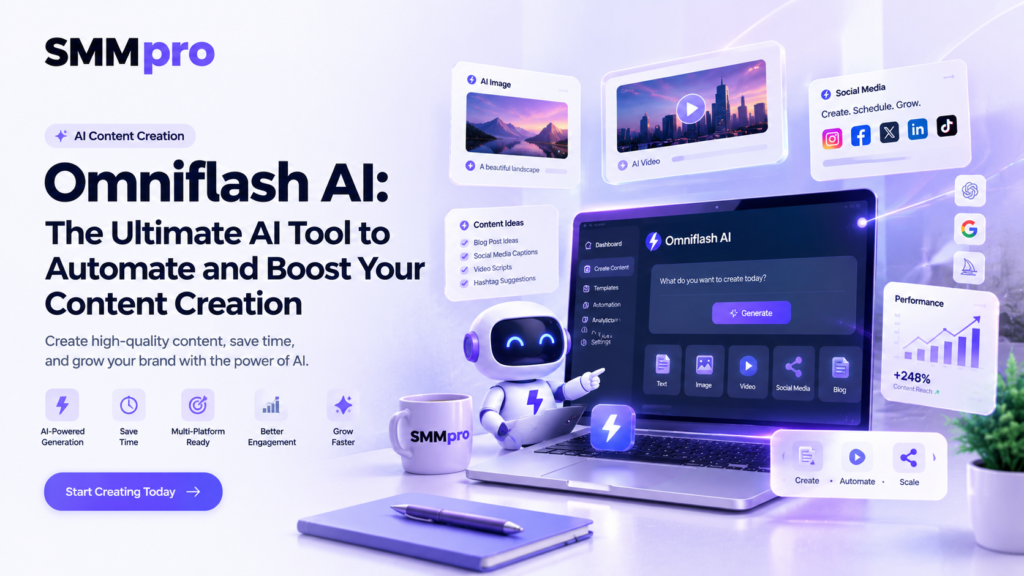
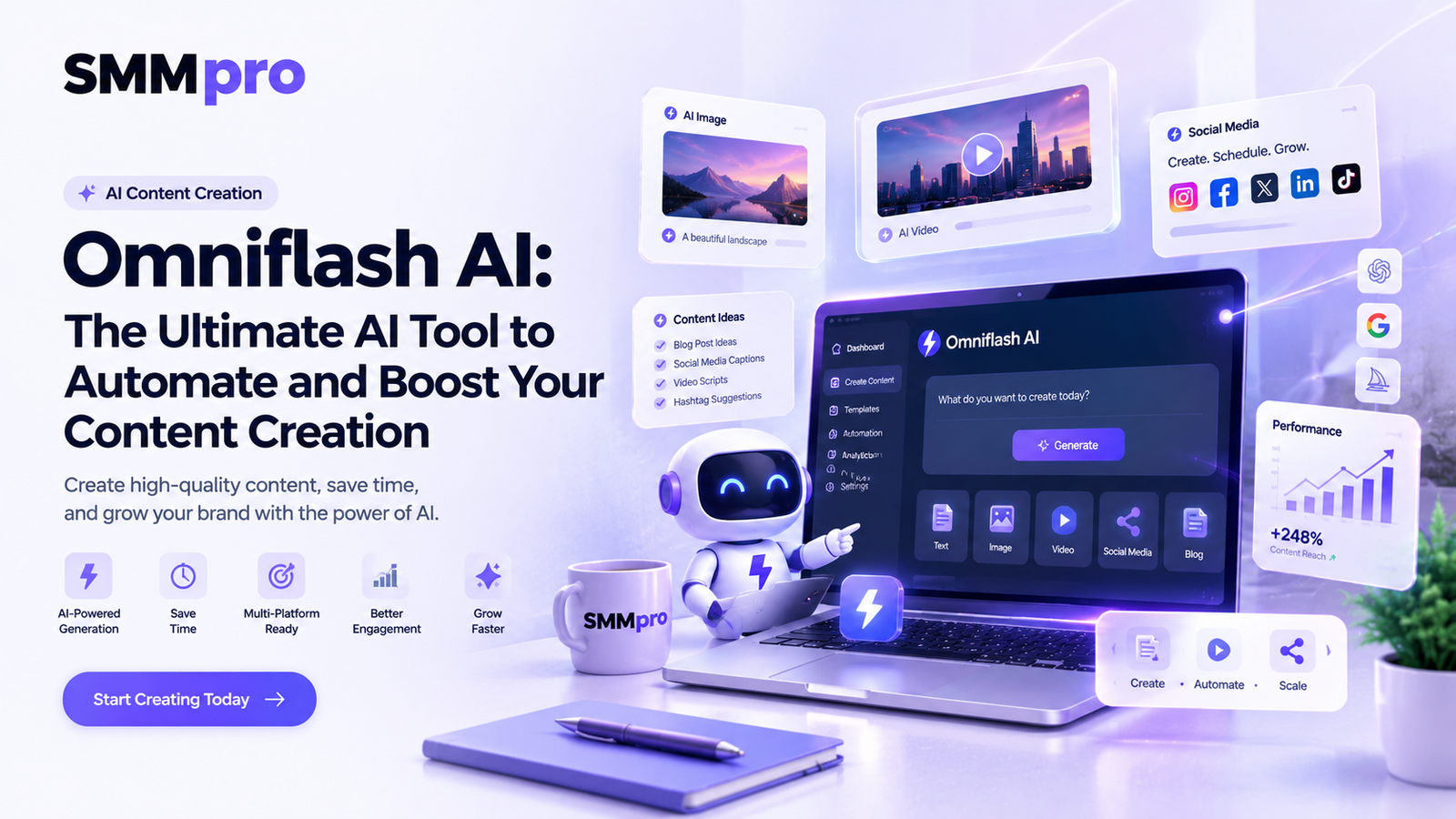
Video is the format most brands now need, and the one most teams struggle to produce. Filming, editing, and revising a single 10-second clip can eat an afternoon. Omniflash AI aims to cut that to minutes.
The short answer: “Omni Flash” most commonly refers to Gemini Omni Flash, Google’s AI video model. It turns text, images, audio, and video clips into short videos, and lets you edit them by typing instructions. It’s a strong fit for social clips, ads, and explainers. It is not a full replacement for long-form production.
This guide covers what the tool does, how to use it for content creation, where it falls short, and how to avoid look-alike sites.
What Is Omniflash AI?
Google announced Gemini Omni at I/O 2026 on May 19, with Gemini Omni Flash as the first model in the family. It can generate and edit video from combined image, audio, video, and text inputs. Google’s own materials describe it as the video equivalent of its Nano Banana image model, according to Google Workspace’s announcement.
Its main selling point is conversational editing. Instead of re-prompting from scratch, you ask for a change, such as a different background, tone, or camera angle, and the model adjusts the same clip. Google says this keeps characters and scenes consistent. letsdatascience
A Warning About Similar Names
Several websites use “Omniflash” or “Omni Flash” in their names and domains. Their relationship to Google isn’t always clear. Some describe themselves as independent tools. One listing describes “OmniFlashAI” as a general productivity and knowledge assistant rather than a video tool.
Before you enter payment details or upload brand assets:
- Check who operates the site and read its terms and privacy policy.
- Confirm whether it uses Google’s model or a different one.
- Compare pricing against Google’s official options.
- Don’t assume a “free” tool grants commercial usage rights.
What Can Omniflash AI Do for Content Creation?
Here are the capabilities that matter for marketers.
| Capability | What it means for you |
|---|---|
| Text-to-video | Turn a written idea into a short clip |
| Image-to-video | Animate a product photo or poster |
| Reference-based generation | Use existing clips or audio as a guide |
| Conversational editing | Revise a clip with plain-language instructions |
| Native audio | Sound is generated with the video, not added later |
| SynthID watermark | Videos carry an invisible mark identifying them as AI-made |
Google Workspace also lists editing existing phone and camera footage with text prompts, and creating personal avatars inside Google Vids. That makes it useful for training videos and business updates, not only social posts.
How to Use Omniflash AI to Automate Content Creation
Automation here doesn’t mean pressing one button and publishing. It means removing the slow, repetitive parts of production. Follow this workflow.
- Start with a goal. Decide what one clip should achieve: a product teaser, a tutorial hook, an ad variation.
- Write a specific prompt. Describe the subject, setting, motion, mood, and any spoken line.
- Add a reference. Upload a product image or brand-colored frame to keep results on-brand.
- Generate a draft. Review for accuracy, visual glitches, and brand fit.
- Refine by conversation. Ask for one change at a time, such as “make the lighting warmer.”
- Finish in your editor. Add captions, logo, music, and calls to action.
- Publish and measure. Track views, watch time, and saves, then repeat what works.
Prompt Example for a Small Business
A 10-second vertical video of a handmade soy candle on a wooden shelf, warm morning light, slow camera push-in, soft ambient sound, cozy home setting.
Follow-up edits might be: “Add steam rising from a coffee cup beside it,” then “Make the scene slightly darker for an evening mood.”
Batch Ideas Worth Trying
- Five hook variations for the same product, to test which holds attention.
- Seasonal versions of an evergreen ad.
- Short explainers that turn a blog post into a visual.
- Storyboards or previews before a real shoot.
Where Omniflash AI Fits in a Marketing Stack
The tool is best treated as one part of a workflow.
- Social video. It suits Reels, Shorts, and TikTok-style clips. Pair it with search-focused captions and spoken keywords, as covered in our guide to TikTok SEO.
- Ads. Generate several creative angles quickly, then spend the budget on the best performers.
- Repurposing. Turn written content into short video assets.
- Concept testing. Mock up an idea before paying for a full production.
Pricing and Availability: What to Verify
Details have shifted since launch, so check Google’s current pages before budgeting.
- The model rolled out to Gemini AI Plus, Pro, and Ultra subscribers through the Gemini app and Flow, and is free in YouTube Shorts and YouTube Create at launch. vo3ai
- In the Gemini API, one source reports the June 30, 2026 launch of Gemini Omni Flash, and another reports that the stable gemini-omni-1.1-flash model reached general availability on August 27, 2026, with output from 360p to 4K. explainxusefastlane
- The same source reports the older preview endpoint was set to be deprecated on September 30, 2026, which matters if you build automations on the API. usefastlane
- Third-party reports put API pricing at roughly $0.10 per second of 720p video. Treat this as an estimate and confirm on Google’s pricing page. usefastlane
Clip length was initially capped at 10 seconds, with reports of longer extensions in the newer version. Check current limits before planning longer formats. vo3ai
Pros and Cons
Strengths
- Fast drafting without cameras or crews.
- Natural-language editing lowers the skill barrier.
- Handles mixed inputs in one workflow.
- Built-in watermarking supports transparency.
- Useful for small teams with limited budgets.
Limitations
- Short clips mean longer videos need stitching and editing.
- Output can contain visual errors, odd text, or unrealistic motion.
- Brand consistency still needs human review.
- Rules for commercial use and platform availability vary by plan and region.
- Some features, such as personal avatars, have been rolled out cautiously.
Common Mistakes to Avoid
- Publishing the first draft. Always review frames, text, and audio.
- Writing vague prompts. “A cool product video” gives random results. Specifics give control.
- Ignoring rights and disclosure. Check licensing and your platform’s AI-content rules.
- Using real people’s likeness without permission. Avatars and voices require consent.
- Trusting copycat sites. Verify the operator before uploading anything.
- Chasing volume over quality. Ten forgettable clips lose to one clear, useful one.
- Skipping the strategy. A tool can speed up production, but it can’t tell you what your audience wants.
Key Takeaways
- Omniflash AI usually points to Google’s Gemini Omni Flash, a multimodal AI video model.
- Its strongest feature is editing video through conversation.
- It’s best for short social clips, ad variations, and concept testing.
- Verify any site using the “Omni Flash” name before paying or uploading.
- Review outputs for quality, accuracy, and rights before publishing.
- Pricing, limits, and model versions have changed quickly, so check official sources.
Conclusion
Omniflash AI shows how fast video production is changing. The Gemini Omni Flash model lets small teams draft, edit, and test short clips in minutes instead of days. It won’t replace strategy or human judgment, but used well it can automate the slow parts of production and help you ship more ideas. Start with one goal, write a clear prompt, review the result, and publish only what you’d be proud to put your brand on.